How to use GeoDetectit in the field
GeoDetectit is built for practical fieldwork: missions, tracking, map context, finds, photos and export. This page gives you the shortest path to understanding how the app works.
Quick start
- Open the app, log in and upgrade to unlock Field features.
- Create or select a mission.
- Choose a map and verify the correct area.
- If you use detector input, check your setup in Detector Configure.
- Tap the Start Detecting button (top left) to begin GPS tracking and detector recording.
- Add finds, notes and photos during the session.
- Toggle between Symbols and Heatmap to view recorded detector signals.
- Export or back up your mission when you are done.
- Open the app on a computer or tablet to analyse your day’s work and identify missed or new areas for the next session.
Field view at a glance
Start with these three ideas: the top bar controls your session, the mission selector keeps your work organised, and tracking shows where you have already walked.
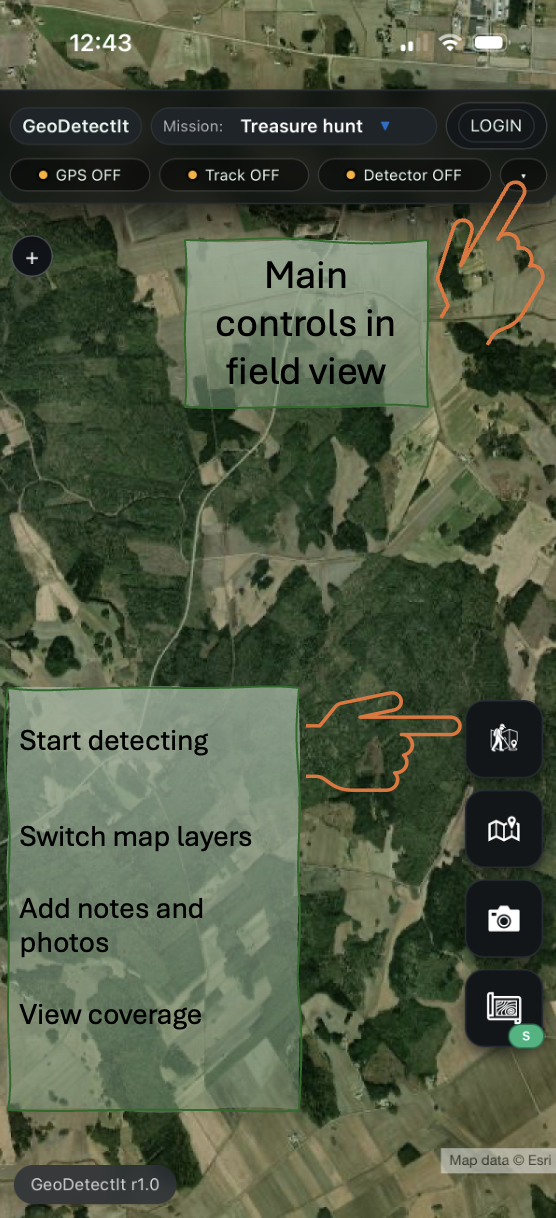
1Main controls in field view
Start detecting, switch map layers, add notes and photos, and view coverage from the same field screen.
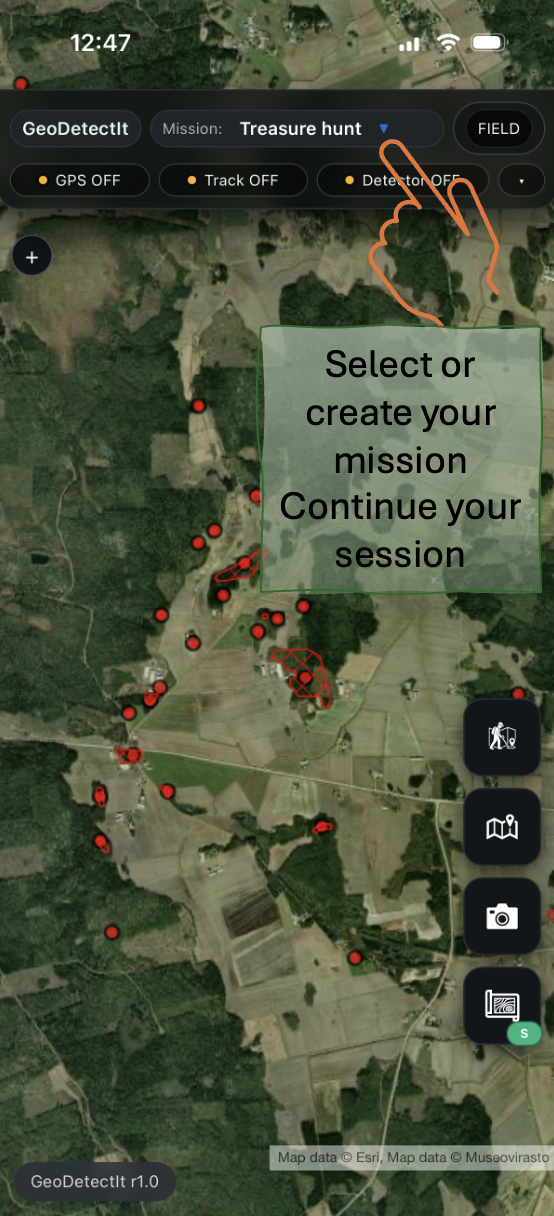
2Select your mission
Use missions to separate locations, projects and revisits. Continue the same session later without losing tracks, markers or photos.
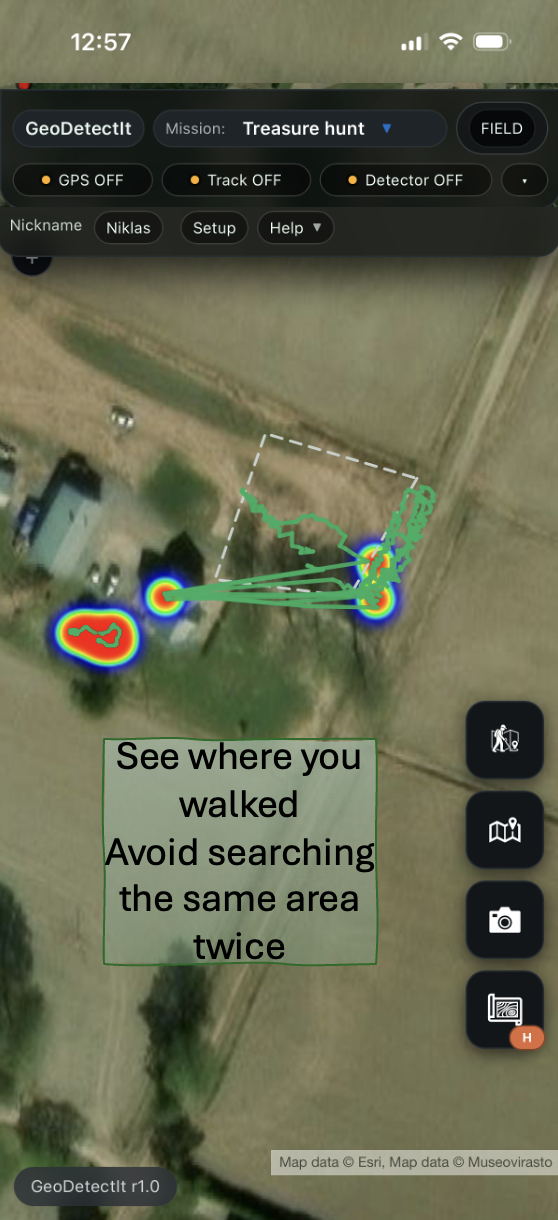
3Track your movement
See where you walked and avoid searching the same area twice. This makes coverage easier to understand over time.
Core workflow
GeoDetectit works best as a simple field workflow: choose a mission, walk with GPS, record what matters, then export or continue later.
1. Missions
A mission is your workspace for one field, site or search area.
- Create a new mission for each location or project.
- Use clear names so missions are easy to recognise later.
- Return to the same mission across multiple sessions.
- Keep tracks, finds, photos and stats together.
2. GPS and tracking
GPS helps you see where you actually walked and where coverage gaps still remain.
- Enable GPS before you start walking.
- Let the track build while you search.
- Use the track to avoid covering the same ground twice.
- Compare several sessions inside the same mission.
3. Finds, markers and notes
Record signals, finds or places you want to revisit.
- Add markers manually or through detector input, depending on setup.
- Use categories consistently to build a better field archive.
- Add notes to important markers while the context is still fresh.
4. Photos
Attach geotagged photos to missions and markers.
- Take photos when something is worth documenting.
- Keep images connected to the correct place and context.
- Use them later for analysis, reporting or memory support.
5. Map layers
Switch maps depending on terrain, structure and local context.
- Use orthophotos for ground structure and traces.
- Use topo maps for roads, terrain and navigation.
- Use regional or protected layers where relevant.
6. Export and backup
Export matters for analysis, backup and long-term ownership of your data.
- Export to GeoJSON, GPX or KML for use in other tools.
- Use ZIP export for the full mission with metadata and images.
- Back up important missions regularly.
Account, login and Field access
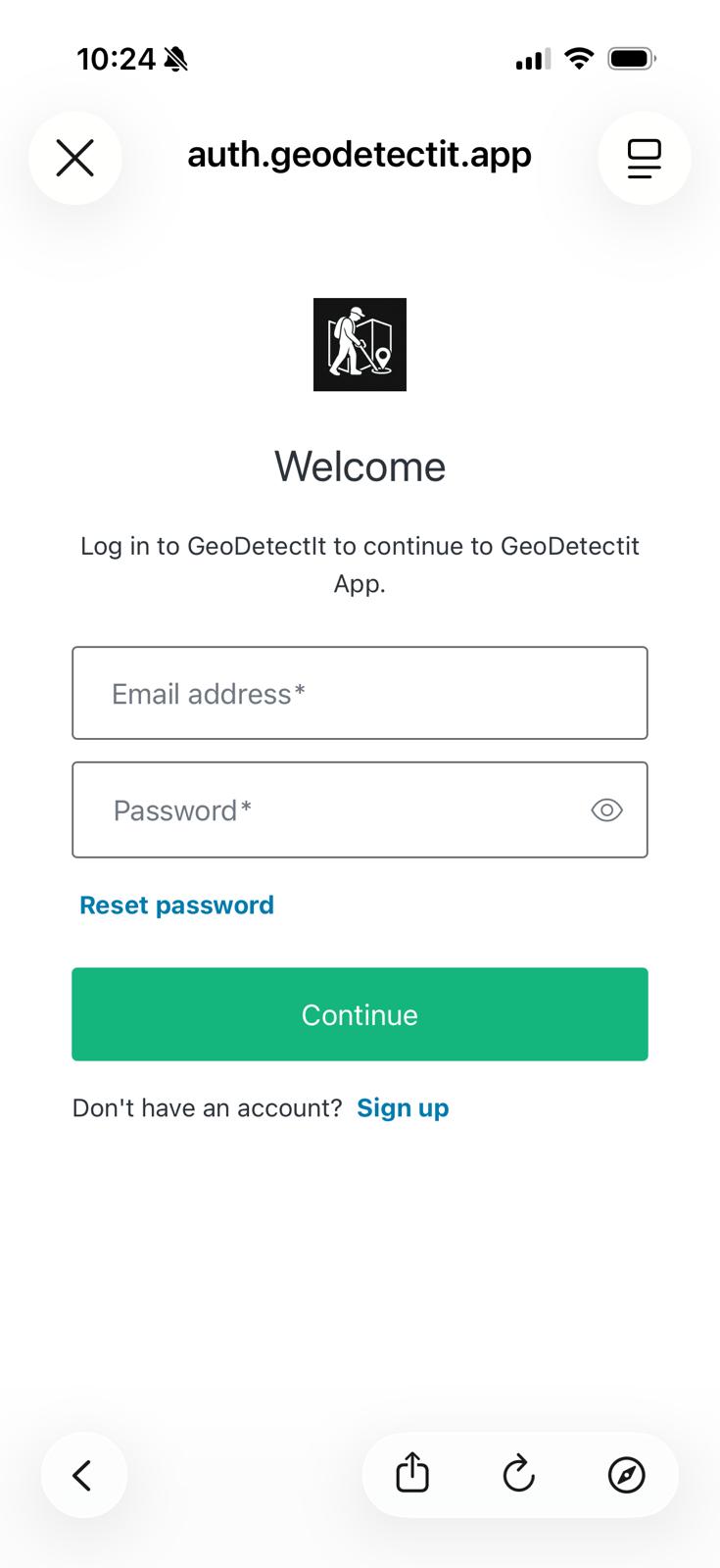
Account login is used to secure and manage your Field subscription.
Create account
- Open the login dialog
- Select Sign up
- Enter your email and password
Verify your email (required)
- Check your email after signup
- Click the verification link
- If you do not see it, check your spam / junk folder
You must verify your email before using Field features.
Login
- Log in after verification
- If subscription does not activate, log out and log in again
Common issues
- Make sure you are logged in
- Log out and log in again
- Wait a few seconds and try again
- Your email is not verified
- Check your inbox or spam folder
- Log in again after verification
- Use Reset password in the login dialog
Detector setup
If you use detector audio input, select the correct profile and input source in the app.
- Select a built-in model if available.
- Otherwise use Sound Tuner and create your own profile.
- Mic, Cable and Bluetooth can give different levels.
- Use Get connected for the full setup and calibration guide.
Field features
Field is built for more serious and long-term fieldwork.
- Unlimited missions.
- Export and ZIP backup.
- Advanced map layers.
- Detector profiles and more structured workflows.
Common workflows
First visit to a new area
Create a new mission, choose the right map, verify detector setup and start GPS tracking immediately.
Returning to the same area
Open the same mission, compare earlier tracks and focus on gaps, new signal zones or previously interesting places.
After a field session
Review finds and photos, clean up what you do not need and export a backup if the session matters.
FAQ
Do I need detector audio input to use the app?
No. You can still use GeoDetectit as a mapping and documentation tool without direct audio connection.
Where do I find the cable and Bluetooth guide?
On the Get connected page, where connection paths, compatibility, profiles and Sound Tuner are explained.
Do I need upgrade to use the app?
No. But subscription gives you more tools for more advanced and long-term field workflows.
Ready to continue?
Open the app, or move on to connection and detector setup if you want detector audio working correctly.